 CommentStream
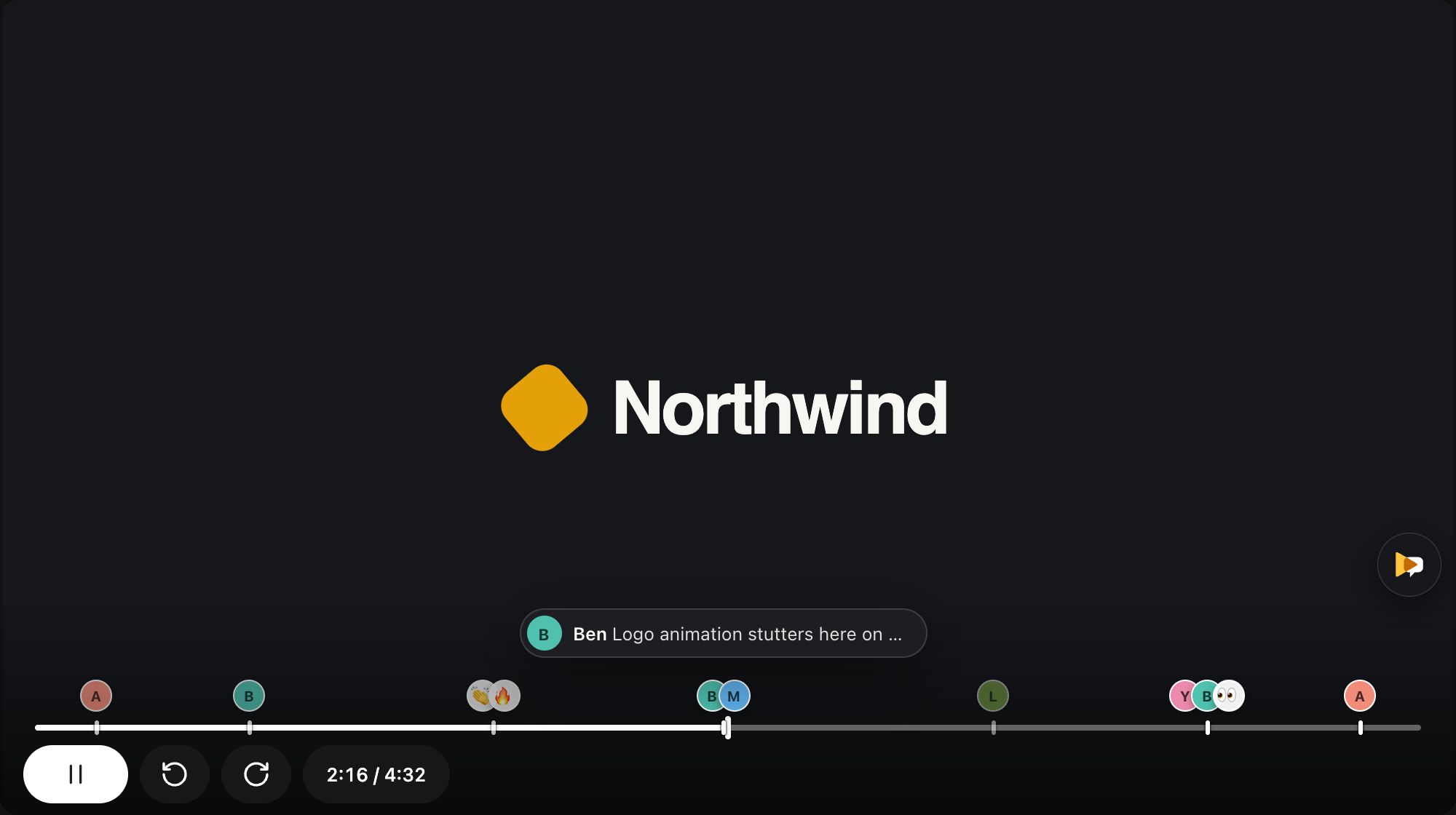
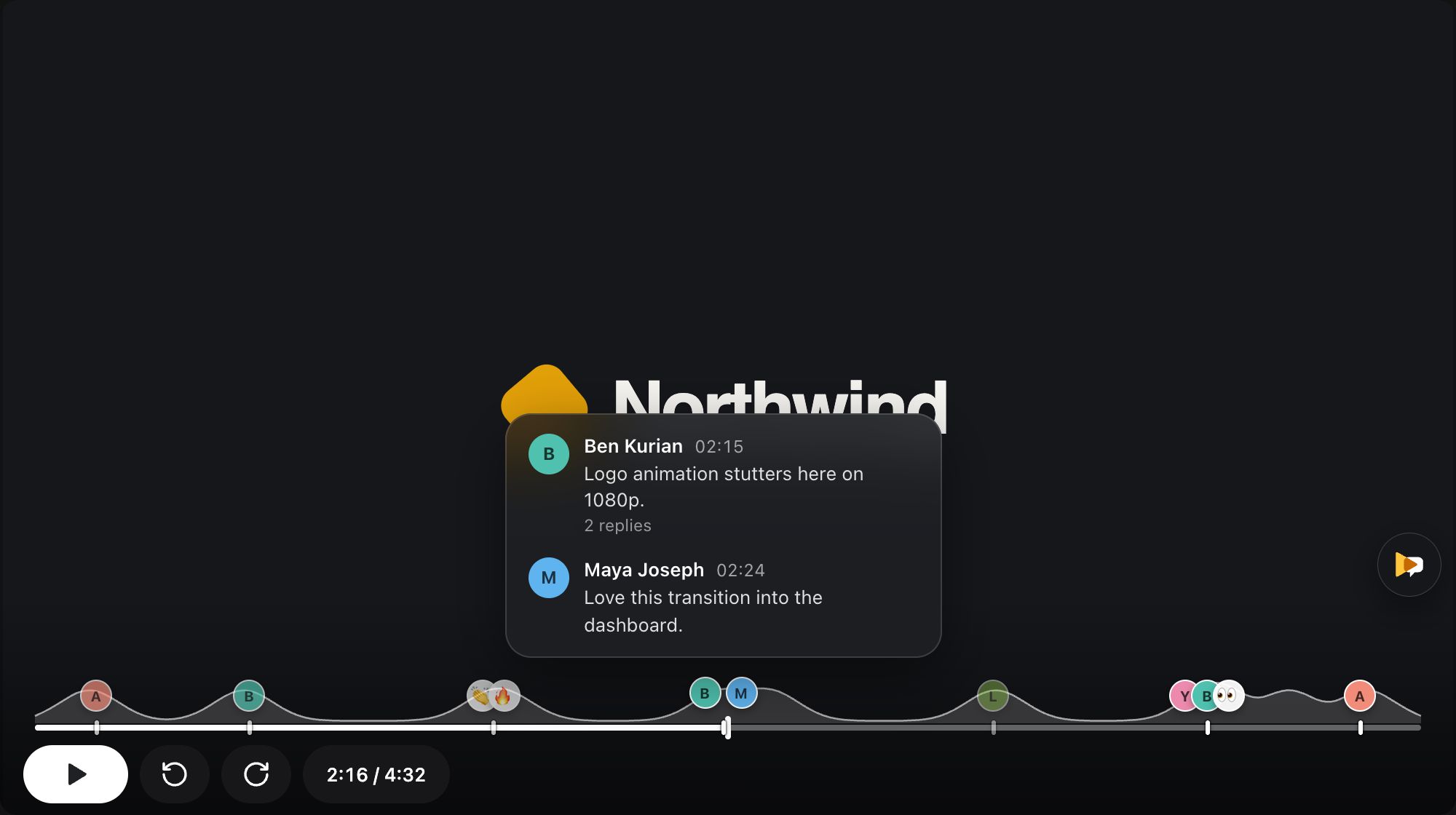
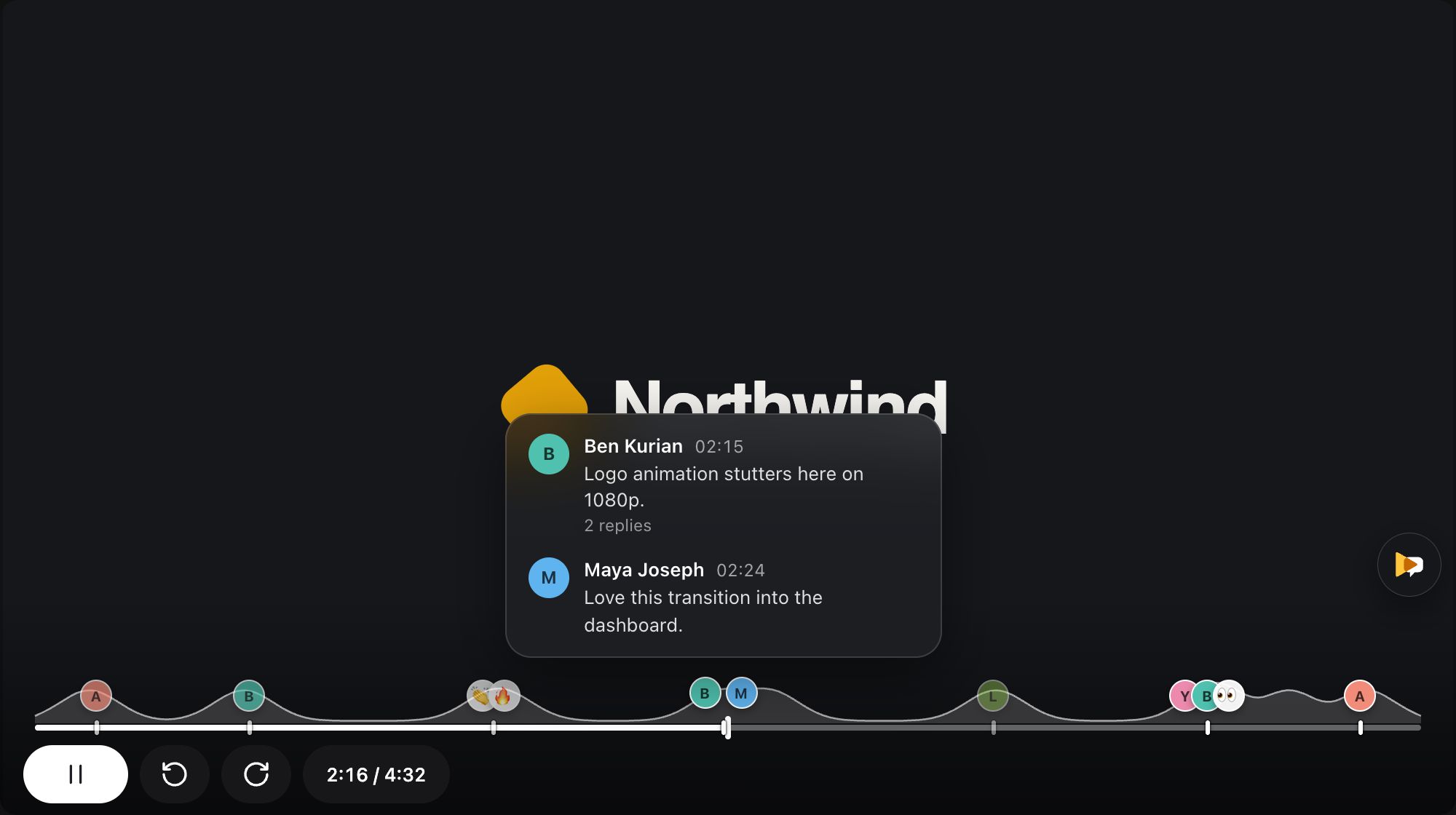
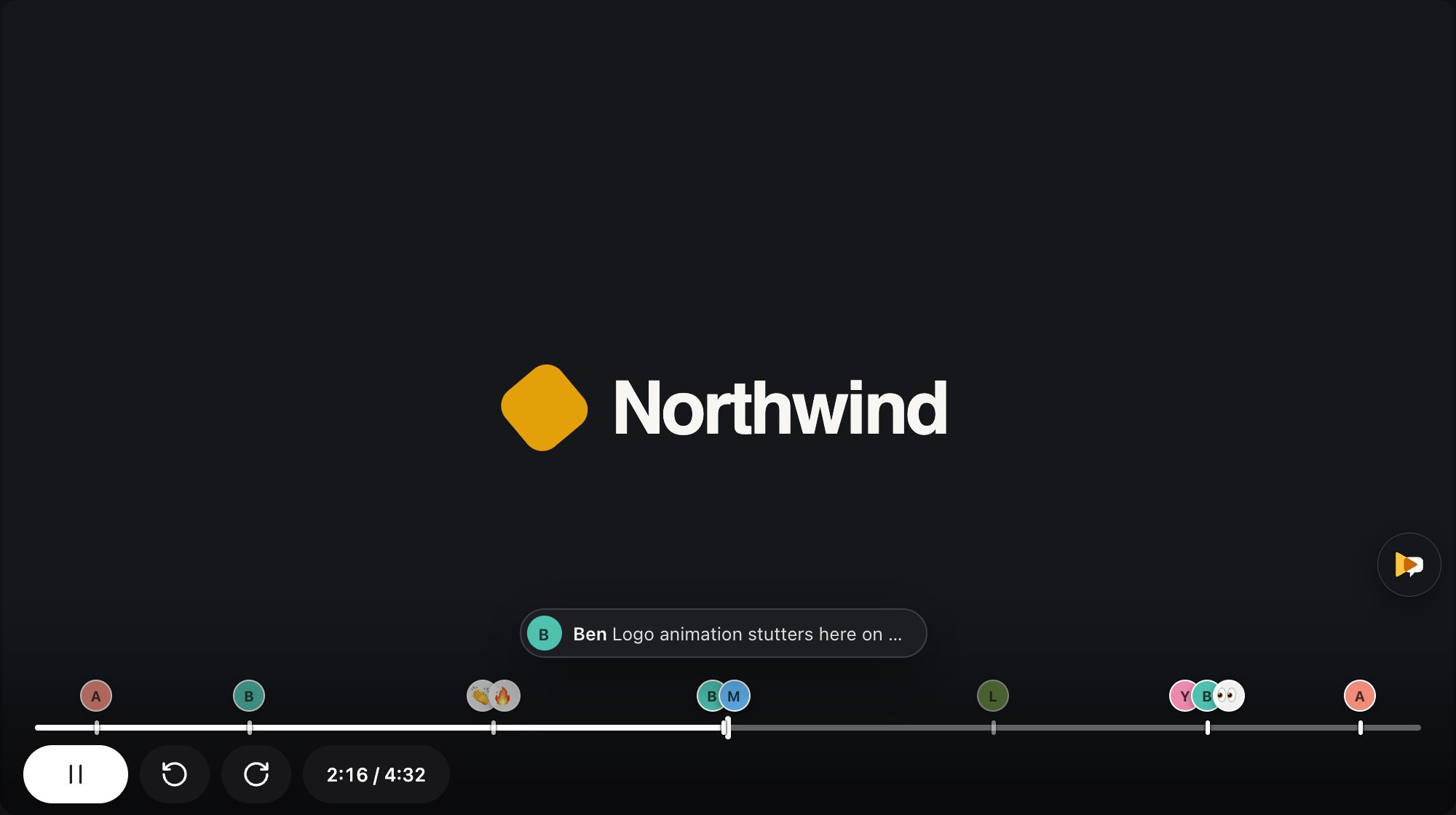
Faces on the seek bar
Every moment people discussed shows their faces on Drive’s own player. Hover to read, click to play from there.
00:00 For teams on Google Workspace
You already have a recorder and a home for your videos: Google Meet and Google’s free Vids Screen Recorder both save to your Drive. CommentStream adds the part your team needs around the video: comments at the second, reactions on the video, replies that reach people, and an AI summary of the feedback.
Free for up to 3 people. No card needed.
How it works
Record a meeting in Google Meet, or your screen with Google’s free Vids Screen Recorder. Both save the video to your Google Drive.
Send the Drive link, with the access you already manage. Nothing is uploaded anywhere else.
Your team comments at the second, reacts, replies and gets a summary, right beside the video.
Google’s side: Meet records on Workspace Business Standard and up; the Vids Screen Recorder is free on personal and Workspace accounts, for recordings up to 30 minutes. Last checked 19 Nov 2026.
Try it
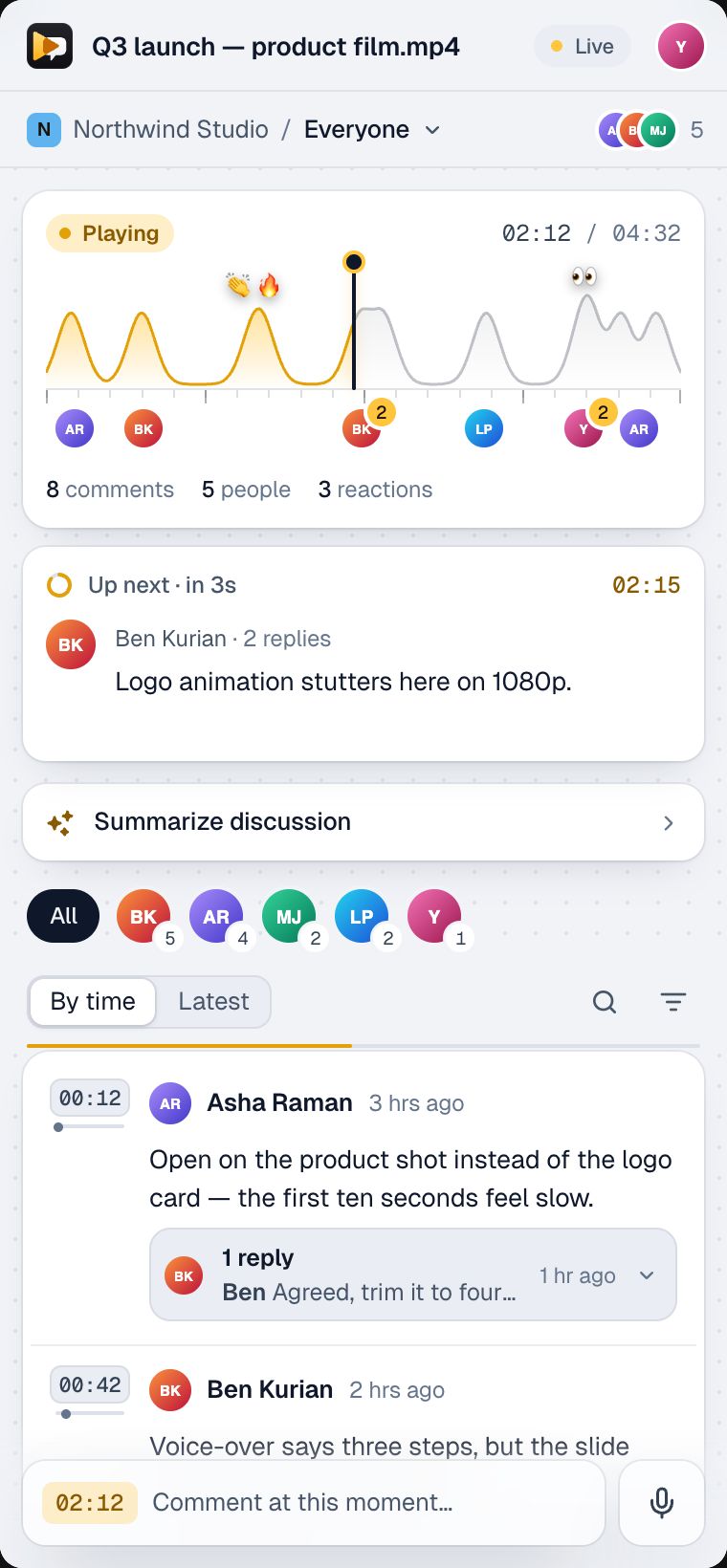
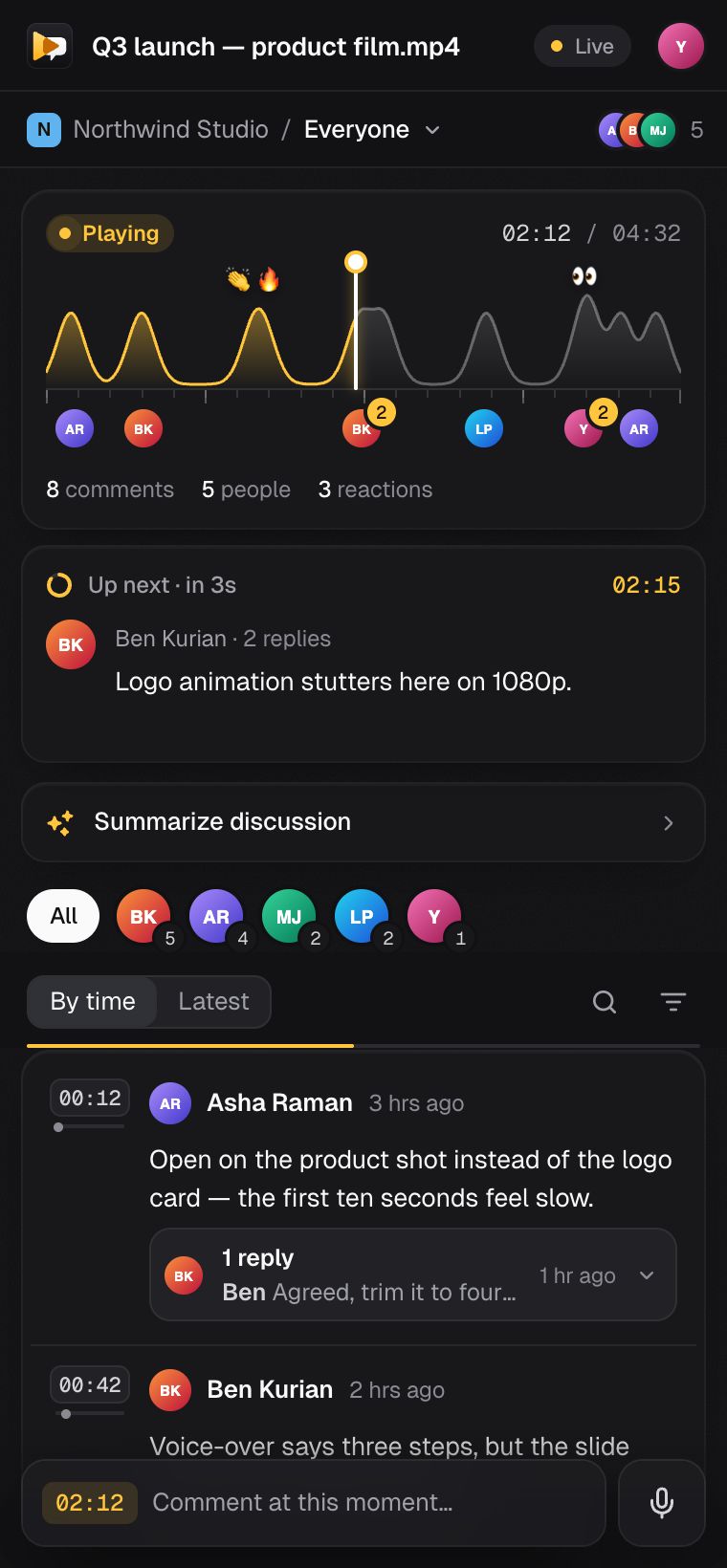
The real panel and player overlay on a sample video: comment at a second, react, reply in a thread and summarize the discussion.
The real panel and player overlay, running on sample data. Nothing you type leaves this page. If you use the mic, Chrome sends your speech to Google's speech service to turn it into text; we never receive or store audio.
What your team gets
Every moment people discussed shows their faces on Drive’s own player. Hover to read, click to play from there.
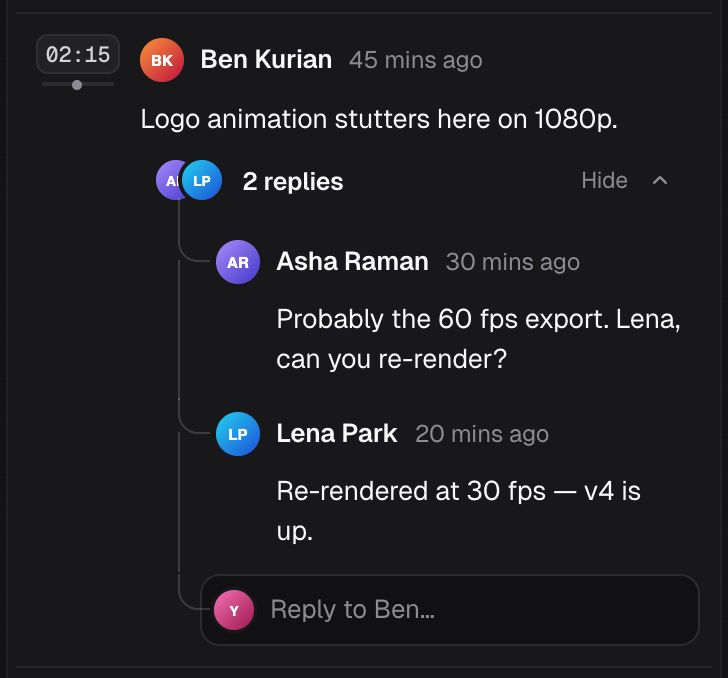
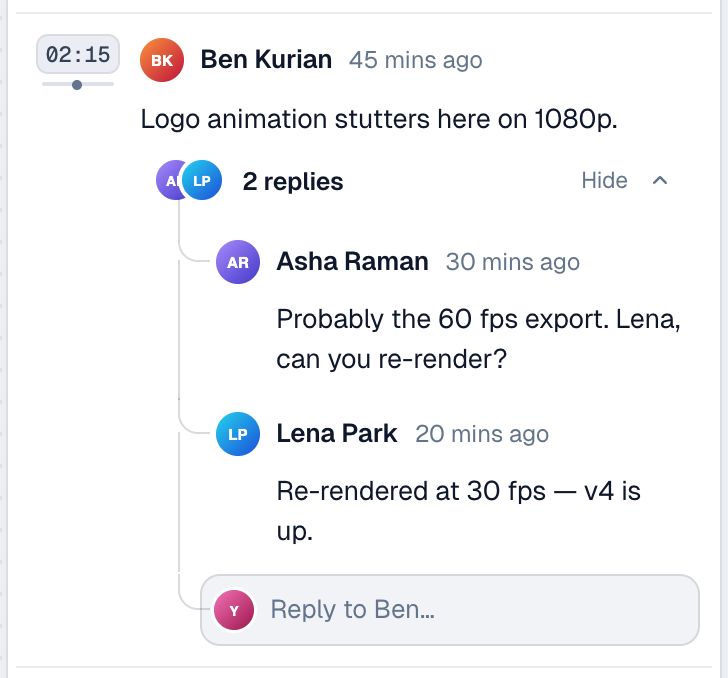
Pause and write. Replies, @mentions and reactions stay with the moment they’re about.
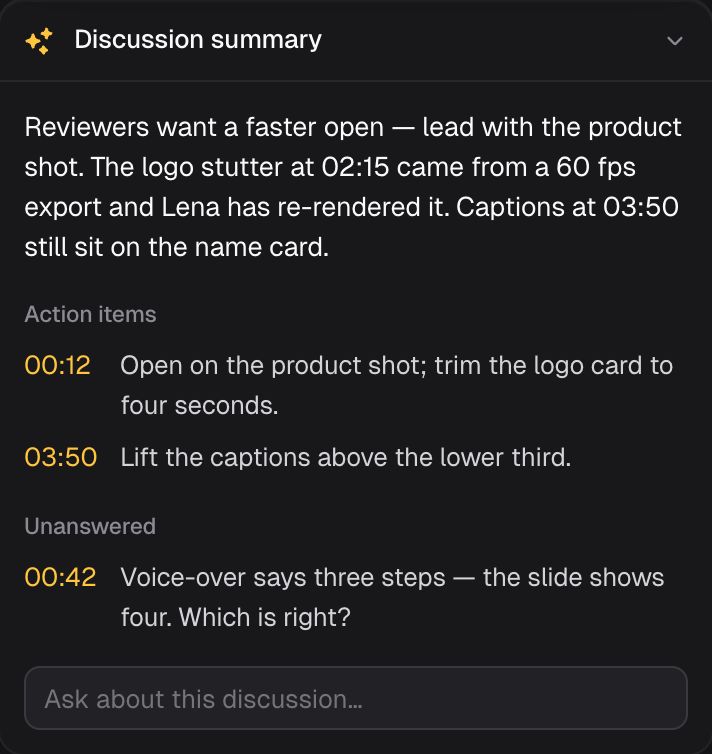
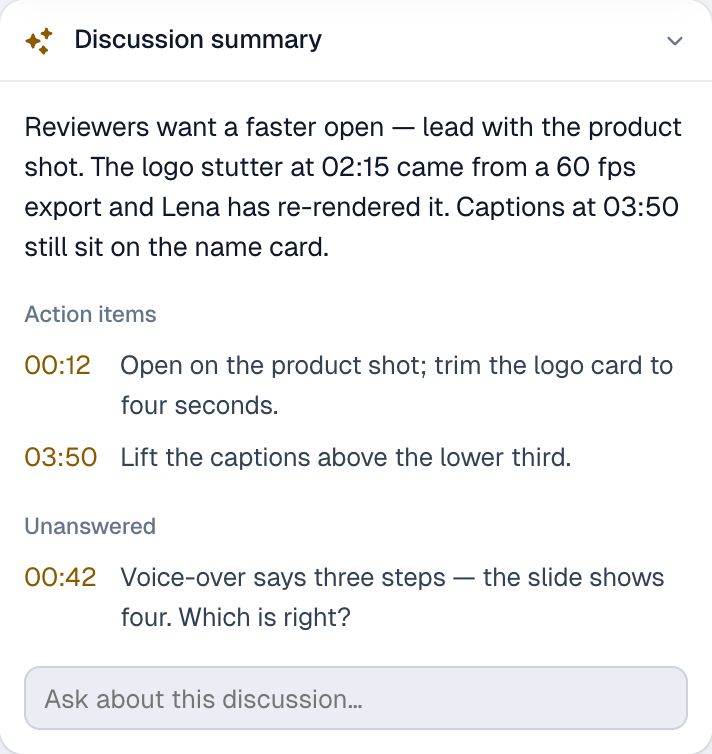
AI reads the team’s comments and lists the action items and open questions, each at its timecode.
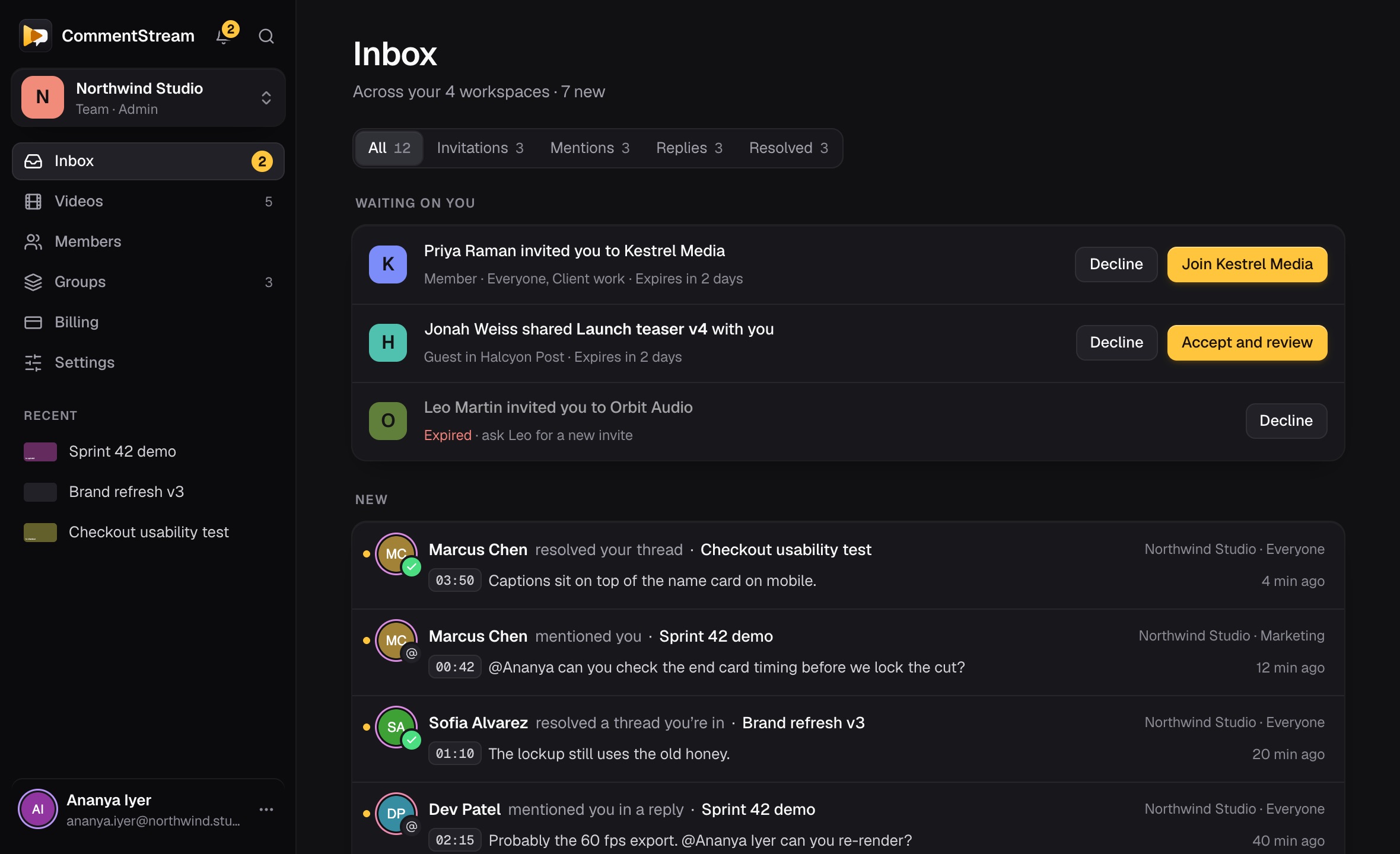
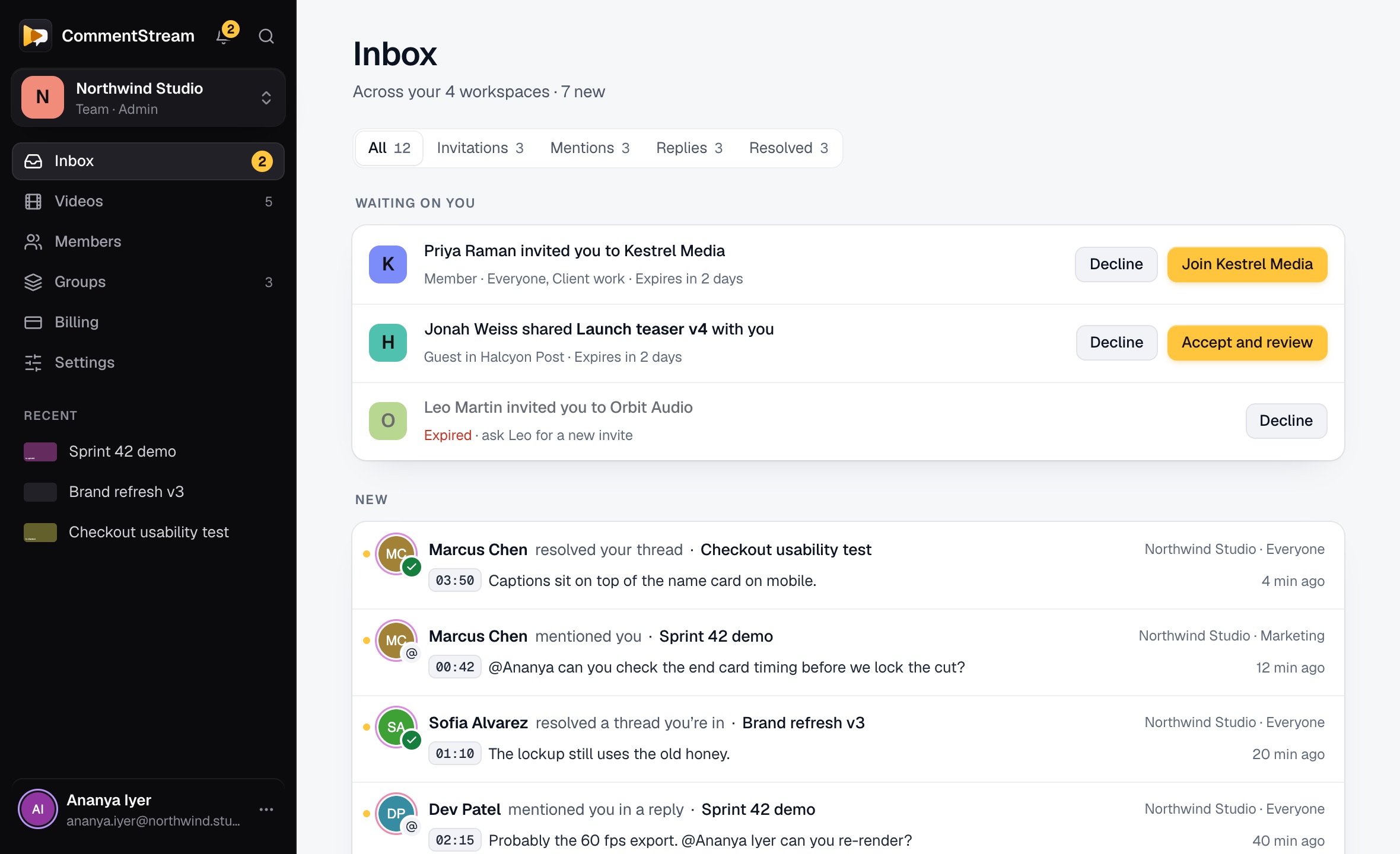
An inbox across every video, and Slack DMs on Pro and Business when someone mentions you, replies in your thread or resolves it.
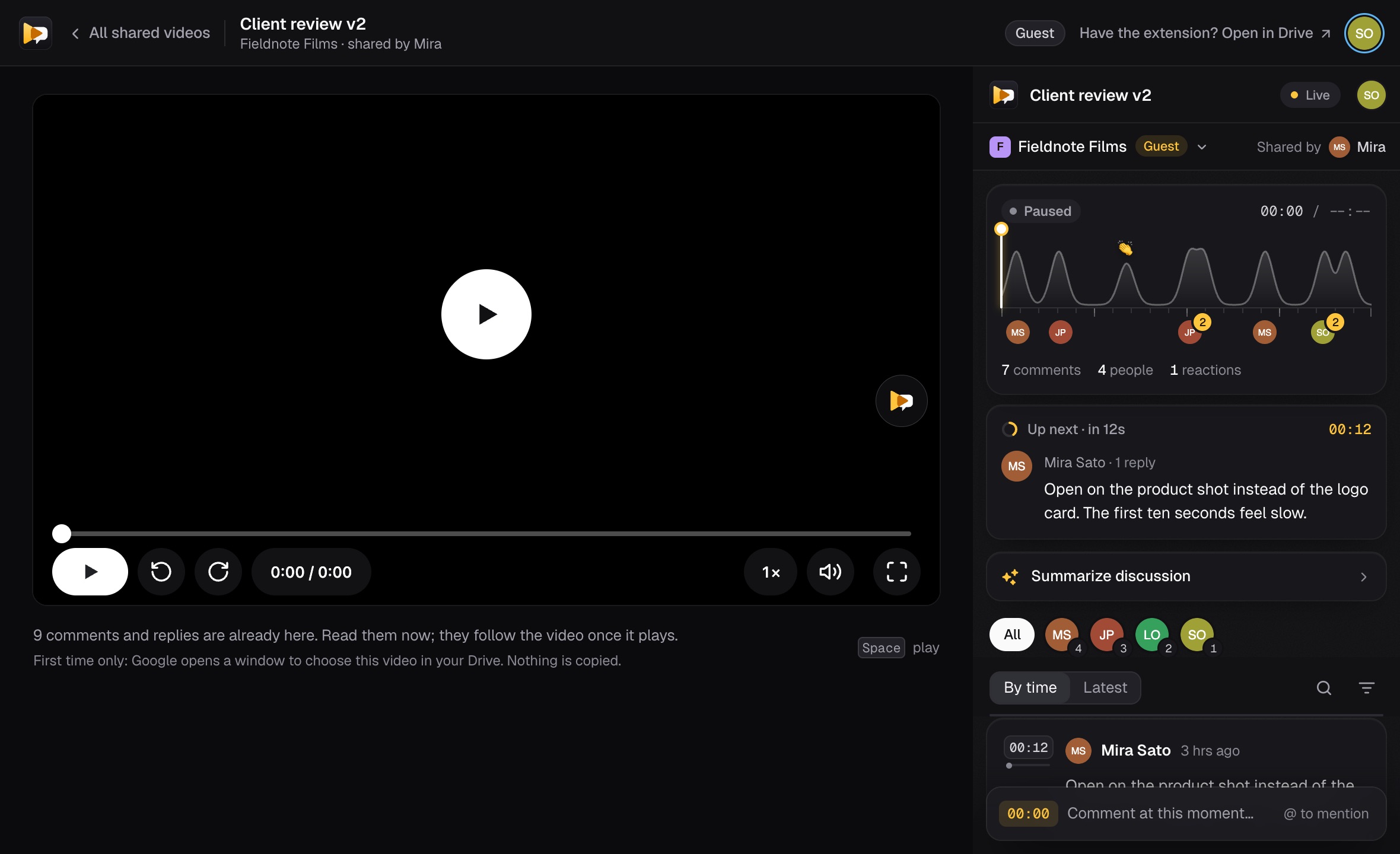
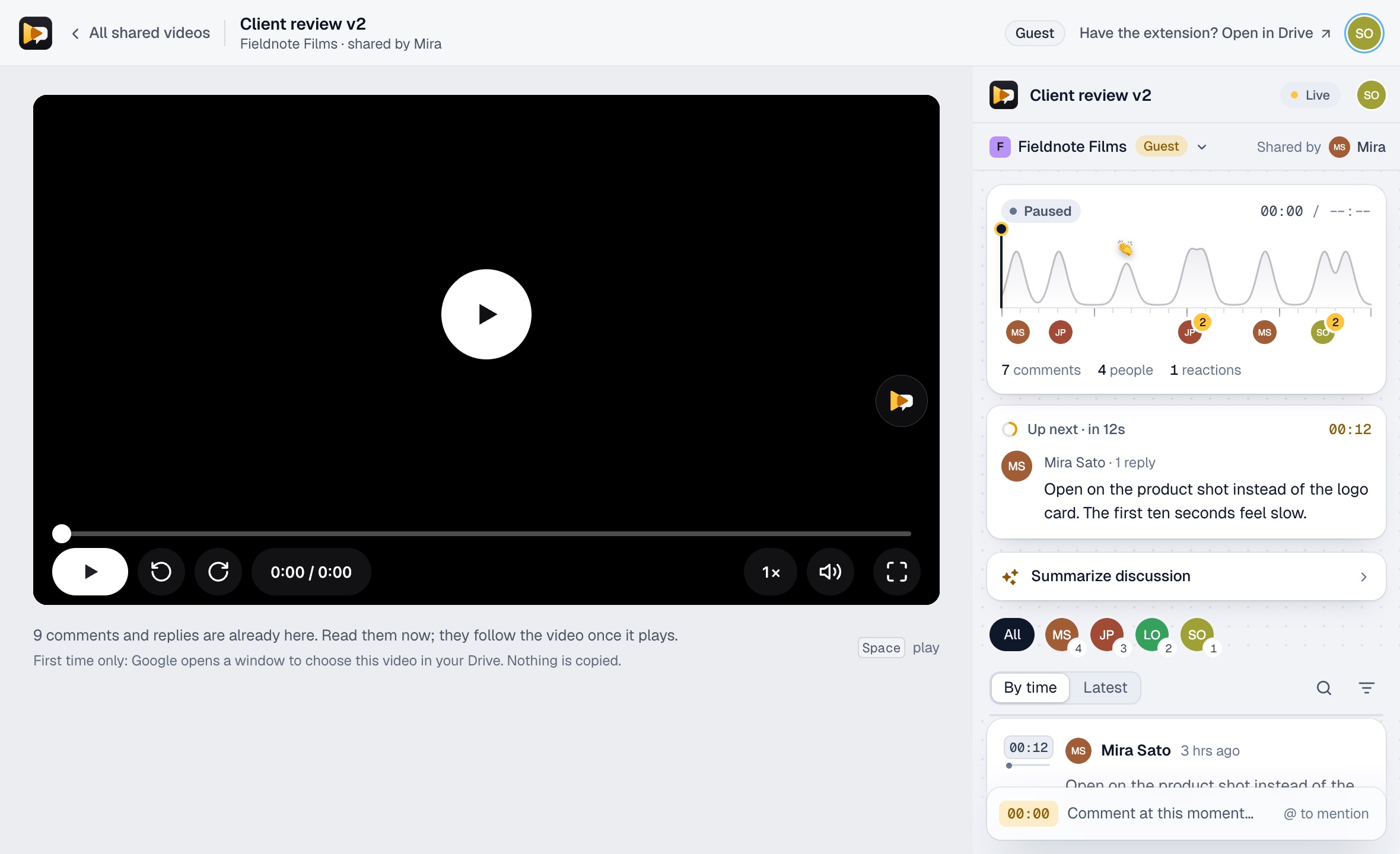
On Pro and Business, invite someone outside the team to one video. No extension, no seat.
Nothing is uploaded. The video keeps the sharing and retention you already manage; CommentStream stores only the comments.
What it costs
Free for up to 3 people. Pro is $5 per seat a month, or $36 a year, with a 14-day trial and no card. Guests on Pro and Business take no seat.
FAQ
No. Record with Google Meet or Google’s free Vids Screen Recorder, which save to your Google Drive. CommentStream adds the conversation around the video: comments at the second, reactions, threads, an inbox and AI summaries.
In your Google Drive, under the sharing you already set. Nothing is uploaded to CommentStream; it stores only the comments.
Yes. Any video that plays in Google Drive works, including recordings you export from another tool and upload to Drive.
Members comment from the CommentStream Chrome extension, beside the video in Drive. Guests, on Pro and Business, review the one video shared with them on the CommentStream website with no extension.
No. Anyone in your workspace who can play the video can comment, reply and react in CommentStream, so you can share it view-only and keep the file’s sharing as it is.
Free for up to 3 people, 5 videos with discussion and 3 AI summaries a month. Pro is $5 per seat a month, or $36 a year, and starts with a 14-day trial with no card.
Compared with Drive’s own comments · Feedback on Meet recordings · Pricing